What Is Bartender Software? Bartender 6 Price Guide
Learn what Bartender software does on Mac, how Bartender 6 licensing works, and how Bartender price options compare before you buy.
If your Mac menu bar is packed with cloud sync tools, VPN icons, audio controls, calendar apps, screen capture utilities, and status monitors, you are the person Bartender was built for. So, what is Bartender software in plain terms? Bartender is a Mac menu bar manager that lets you hide, reveal, search, reorder, and style menu bar items so the top of your screen stays usable.
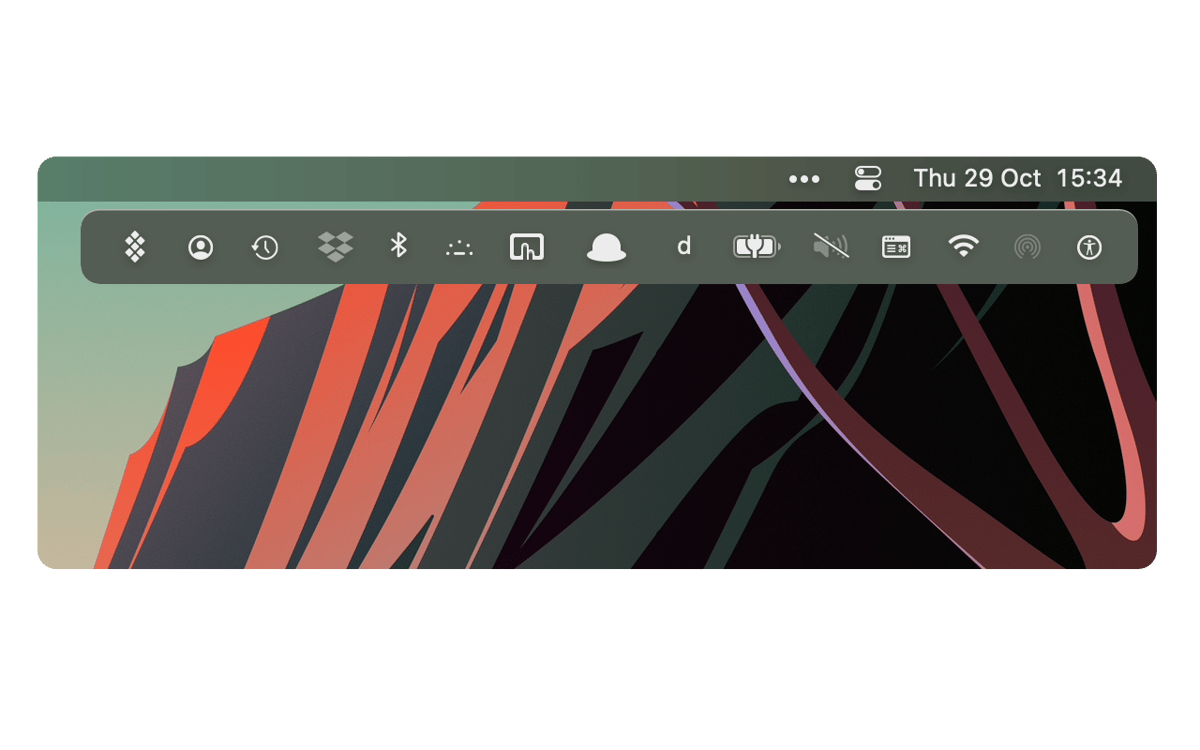
This Bartender 6 guide focuses on two practical questions buyers usually have before checkout:
- What does Bartender actually do that macOS does not already handle well?
- What should you know about Bartender license cost, Bartender price, and version compatibility?
Quick Answer: What Is Bartender Software?
Bartender software is a macOS utility for organizing menu bar icons. It gives you control over which icons stay visible, which icons stay hidden, and how quickly you can get to hidden items when you need them.
The default macOS menu bar works well until you install a dozen always-on tools. Once the right side of the menu bar fills up, important items can become hard to scan, and on MacBook models with a notch, some icons may be constrained by available space. Bartender gives you a dedicated layer for cleaning that up.
Common uses include:
- Hiding rarely used app icons.
- Revealing hidden icons by hover, click, scroll, or shortcut.
- Searching for a menu bar item by name.
- Showing an icon only when something needs attention.
- Styling the menu bar for better readability.
- Managing crowded MacBook menu bars with limited horizontal space.
What Bartender 6 Adds for Modern macOS
Bartender 6 is aimed at newer macOS versions and the current Mac menu bar design. The official Bartender purchase page says a Bartender 6 purchase gives access to Bartender 6 for macOS Tahoe and Bartender 5 for Sequoia and Sonoma, with the same license key working in both apps.
Setapp currently lists Bartender version 6.4.2 and says the app requires macOS 14.0 or later. That matters because menu bar tools depend heavily on macOS behavior. When Apple changes the menu bar, notch behavior, permissions, or visual style, a utility like Bartender has to keep up.
The most useful Bartender 6 features for daily work are:
Hidden and Visible Menu Bar Items
You can decide which items are always shown and which are tucked away. This is the core reason most people search for what is Bartender software: they want the menu bar to stop acting like a pile of tiny icons.
Quick Reveal
Hidden items are still available. Bartender can reveal them with a click, hover, swipe, scroll, or keyboard action, depending on how you configure it.
Search
Search is helpful when you run many utilities and do not want to remember where every icon lives. Type the app or item name, then jump to it.
Smart Triggers
Triggers can show an icon only when a condition is met. For example, you might reveal a Wi-Fi, battery, backup, or sync icon when its status changes. This keeps quiet apps hidden while still letting important changes surface.
Menu Bar Styling
Bartender 6 includes styling controls for the menu bar, including shape and visual treatments. This is not just cosmetic. If your menu bar is hard to read against a busy wallpaper, styling can make icons easier to scan.
Bartender License Cost: What Buyers Should Check
As of April 24, 2026, there are a few different ways buyers may encounter the Bartender license cost:
| Purchase path | What to know |
|---|---|
| Cosmiq Bartender 6 listing | Cosmiq lists Bartender 6 at $11, with an original price shown as $20. |
| Official Bartender purchase page | The official page offers a Bartender 6 license, a Mega Supporter option, and upgrade paths; taxes may vary by location. |
| Setapp | Setapp lists Bartender as available through subscription and also shows an app-only option from $9.99/year. |
Those numbers can change, so treat them as a buying snapshot rather than a permanent rule. Before you buy, check three things:
- Whether you are buying a direct license, a subscription, or a marketplace entitlement.
- Which macOS version you use today.
- Whether you need upgrade rights for future major versions.
Bartender Price vs Value: When It Makes Sense
The Bartender price is easiest to justify if you use your Mac all day and have a crowded menu bar. It is harder to justify if you only keep a handful of icons visible and rarely interact with them.
Bartender 6 is a good fit when:
- Your MacBook notch hides or squeezes menu bar items.
- You run many background utilities.
- You use status icons for work, security, audio, networking, or system monitoring.
- You want hotkeys for menu bar access.
- You want status changes to appear only when they matter.
It may be overkill when:
- You only have 4 or 5 menu bar icons.
- You are happy using macOS Control Center.
- You do not want to grant menu bar/accessibility permissions to a utility app.
- You prefer not to rely on menu bar tools after major macOS updates.
Bartender 6 Setup: A Practical Bartenders Guide for Mac Users
People sometimes search for a bartenders guide when they really mean a guide to the Bartender app. Here is the practical setup path for Bartender 6.
1. Start With Three Visibility Groups
Do not try to perfect every icon on day one. Create three simple groups:
- Always visible: battery, Wi-Fi, calendar, work-critical tools.
- Reveal on demand: cloud sync, audio tools, screen capture, clipboard apps.
- Always hidden: utilities you almost never click.
This keeps setup fast and avoids turning organization into a second job.
2. Add Search Before You Hide Too Much
Search is your safety net. If you hide many icons, make sure search is easy to activate with a shortcut or quick pointer action.
3. Use Triggers for Status Apps
Triggers are ideal for icons that are boring most of the time but important when something changes. Backup, sync, VPN, battery, and Wi-Fi indicators are common examples.
4. Test With Your Real Workday
After setup, use your Mac normally for a full day. Any icon you reveal more than five times should probably become easier to reach. Any icon you never reveal can stay hidden.
5. Revisit After macOS Updates
Menu bar utilities can be sensitive to macOS changes. If you update macOS and something feels slow or odd, check for a Bartender update, review permissions, and confirm whether your installed version is intended for your macOS release.
Bartender 6 Compared With Related Mac Utilities
Bartender is focused on the menu bar. It does not replace every type of Mac utility, and it works best when paired with tools that have a clear job.
| Need | Better fit |
|---|---|
| Hide and organize menu bar icons | Bartender 6 |
| Monitor CPU, memory, network, and sensors | iStat Menus |
| Quit many apps quickly | QuitAll |
| Manage the MacBook notch area visually | NotchNook |
| Buy many Mac apps through one subscription | Setapp |
That distinction helps keep expectations fair. Bartender is not a system monitor, launcher, or cleanup app. It is a menu bar control utility.
Internal Link Targets
- Bartender 6 product page
- iStat Menus product page
- QuitAll product page
- NotchNook product page
- Setapp vs one-time Mac licenses guide
External Sources
- Official Bartender 6 purchase page
- Official Bartender 6 overview
- Bartender on Setapp
- Setapp guide to organizing the Mac menu bar with Bartender
FAQ
What is Bartender software used for?
Bartender software is used to organize the macOS menu bar. It lets you hide, reveal, reorder, search, and style menu bar items so crowded Mac setups are easier to scan and use.
How much does a Bartender license cost?
The Bartender license cost depends on where and how you buy it. As of April 24, 2026, Cosmiq lists Bartender 6 at $11 with a $20 original price, while Setapp shows an app-only option from $9.99/year. Official purchase pricing and taxes can vary.
Is Bartender 6 a subscription?
Bartender can appear in different purchase contexts. Setapp offers Bartender through subscription and also lists an app-only yearly option. Direct license terms should be checked on the official Bartender purchase page before buying.
Does Bartender 6 work with macOS Sequoia and Tahoe?
The official Bartender purchase page says Bartender 6 is for macOS Tahoe and that the same purchase includes Bartender 5 for Sequoia and Sonoma. Setapp currently lists Bartender as requiring macOS 14.0 or later.
Is Bartender worth it for most Mac users?
Bartender is worth it if you have a crowded menu bar, a MacBook notch, or many status utilities. If your menu bar is already minimal, macOS Control Center and default settings may be enough.
Conclusion
For anyone asking what is Bartender software, the short answer is simple: it is a Mac utility that makes the menu bar manageable again. Bartender 6 is most useful for power users, developers, creators, remote workers, and anyone whose Mac menu bar has become hard to read.
If you are comparing Bartender price options, check whether you want a direct license, an app-only yearly option, or subscription access through Setapp. If you want a one-time Cosmiq purchase path, start with the Bartender 6 product page and verify your macOS version before checkout.
Fact-check note
Pricing, version numbers, platform support, and license terms can change. This guide uses Cosmiq catalog data and publicly visible vendor/Setapp information checked on April 24, 2026.
Post CTA
Product shortcut
Ready to use SoundSource?
Per-app volume control & audio routing for macOS